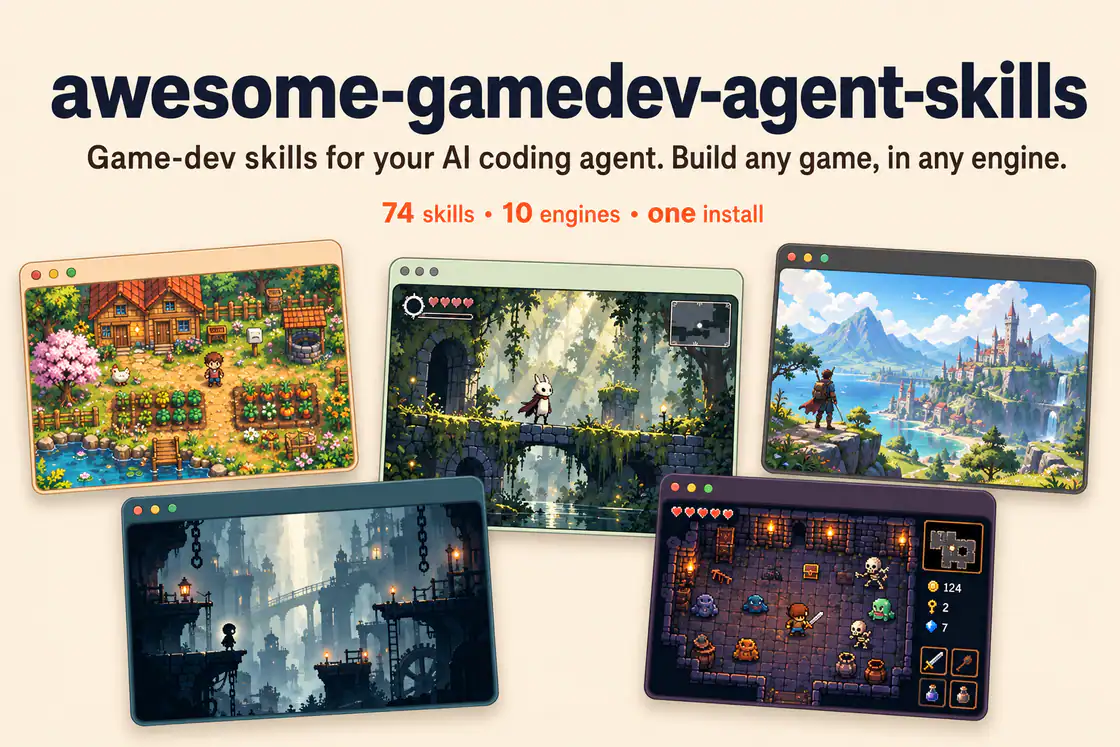
Author-provided banner showing five game scenes. Its 74-skill label reflects an earlier edition; the reviewed catalog contains 76 specialized skills plus a router.
Schermate del progettoInformazioni sullo Skill
Configure Input Actions, action maps, PlayerInput, callbacks, polling, control schemes, and gameplay-to-UI switching.
SKILL.md
Autore: Abhishek Barali · gamedev-skills/awesome-gamedev-agent-skills · Apache-2.0 · SKILL.md @ c6ca6c4
---
name: unity-input-system
description: >
  Wires Unity 6.3 LTS player input with the Input System package: .inputactions assets, action
  maps, PlayerInput and control schemes. Use when input does nothing or fires under a menu,
  FindAction returns null, the old Input class throws, or Input.GetAxis code needs porting. Not
  for engine-neutral buffering, remapping or deadzones (`input-systems`) or jump feel
  (`platformer`).
---

# Unity Input System

Read input through the Input System package (`com.unity.inputsystem`; Unity 6.3 LTS projects
use 1.20.x), which replaces the legacy `Input.GetAxis`/`Input.GetKey` Input Manager. Targets
Unity 6.3 LTS (6000.3).

## When to use

- Movement, jump and fire input; action maps and control schemes; a `PlayerInput`
  component; reading a `Vector2` from a stick or WASD; one set of actions for gamepad,
  keyboard and touch; the Unity rebinding API.
- `Packages/manifest.json` lists `com.unity.inputsystem`, or the project has an
  `*.inputactions` asset.

**When not to use:** input architecture across engines (buffering, remapping screens,
dead-zone design) → `input-systems`; moving the character once you have the vector →
`unity-physics` / `unity-csharp-scripting`.

## Workflow

1. **Read Active Input Handling from the file.** `ProjectSettings/ProjectSettings.asset` has
   `activeInputHandler: 0` (old Input Manager only), `1` (Input System only) or `2` (both).
   The package receives nothing at `0`, and any leftover `Input.GetAxis` call throws at `1`.
   Grep `Assets/` for `Input.Get` before choosing `1`; changing the value restarts the Editor,
   so tell the user.
2. **Reuse the project-wide actions.** New Unity 6 projects usually ship
   `Assets/InputSystem_Actions.inputactions`, assigned as project-wide actions, with a
   `Player` map (`Move`, `Look`, `Attack`, `Interact`, `Crouch`, `Jump`, `Previous`, `Next`,
   `Sprint`) and a `UI` map. Add to it rather than creating a second asset.
3. **Edit the asset as JSON when the Editor is closed.** An `.inputactions` file is JSON:
   `maps[].actions[]` (`name`, `type`, `expectedControlType`) and `maps[].bindings[]`
   (`path` such as `<Keyboard>/space`, `action`, `groups` for control schemes, `isComposite`
   and `isPartOfComposite` for WASD). Give each new action and binding a fresh `id` GUID like
   the existing entries, keep the file valid JSON, and re-read it after writing.
4. **Choose one way to read it:**
   - **Project-wide actions in code**, `InputSystem.actions.FindAction("Player/Move")`: no
     asset reference to wire and the actions start enabled. The default for new code.
   - **`PlayerInput` component** when the project already uses it, or for local co-op
     (`PlayerInputManager` gives each joining device its own player).
   - **An `InputActionReference` or a separate asset** when a tool or system needs its own
     actions; you `Enable()` and `Disable()` them yourself.
5. **Switch action maps for context** (gameplay vs menu) instead of guarding every handler.
6. **Verify** with the checks below.

## Patterns

### 1. Project-wide actions, polled

```csharp
using UnityEngine;
using UnityEngine.InputSystem;

public class PlayerControls : MonoBehaviour
{
    private InputAction _move, _jump;

    private void Awake()
    {
        _move = InputSystem.actions.FindAction("Player/Move");
        _jump = InputSystem.actions.FindAction("Player/Jump");
    }

    private void Update()
    {
        Vector2 move = _move.ReadValue<Vector2>();       // continuous value
        if (_jump.WasPressedThisFrame()) { /* jump */ }  // edge, true for one frame
    }
}
```

### 2. Callbacks and map switching

```csharp
private InputActionMap _player, _ui;

private void Awake()
{
    _player = InputSystem.actions.FindActionMap("Player");
    _ui = InputSystem.actions.FindActionMap("UI");
}

private void Start() => _ui.Disable();   // project-wide actions enable every map at startup

private void OnEnable()  => _player.FindAction("Attack").performed += OnAttack;
private void OnDisable() => _player.FindAction("Attack").performed -= OnAttack;

private void OnAttack(InputAction.CallbackContext ctx) { /* attack once per press */ }

public void OpenMenu()  { _player.Disable(); _ui.Enable(); }
public void CloseMenu() { _ui.Disable(); _player.Enable(); }
```

### 3. `PlayerInput` with Send Messages

`PlayerInput` with Behavior = Send Messages calls `On<ActionName>(InputValue)` on scripts on
the same GameObject: `void OnMove(InputValue v) => _move = v.Get<Vector2>();`,
`void OnJump(InputValue v) { if (v.isPressed) Jump(); }`. Broadcast Messages also reaches
children; Invoke Unity Events and Invoke C# Events need no naming convention.

## Verify

- **No Editor needed:** parse the `.inputactions` JSON and confirm every name your code passes
  to `FindAction`/`FindActionMap` exists (for `"Player/Jump"`, a map `Player` with an action
  `Jump`), and that composites have all their parts. Confirm `activeInputHandler` matches
  the code.
- **Tests:** the package's `InputTestFixture` adds virtual devices and presses controls from
  code. List `com.unity.inputsystem` under `"testables"` in `Packages/manifest.json` and add
  `Unity.InputSystem` and `Unity.InputSystem.TestFramework` to the test `.asmdef` (assembly
  setup is in `unity-csharp-scripting`):

  ```csharp
  using NUnit.Framework;
  using UnityEngine.InputSystem;

  public class JumpInputTests : InputTestFixture
  {
      [Test]
      public void SpaceTriggersJump()
      {
          var keyboard = InputSystem.AddDevice<Keyboard>();
          var jump = new InputAction("Jump", InputActionType.Button, "<Keyboard>/space");
          int performed = 0;
          jump.performed += _ => performed++;
          jump.Enable();

          Press(keyboard.spaceKey);

          Assert.That(performed, Is.EqualTo(1));
      }
  }
  ```

- **Unity CLI with the game running:** `unity command runtime simulate_key` injects a key
  press (for example `Space`) through the Input System into the running app, if
  `unity command --query simulate` lists it for your target. Read the effect back with
  `unity command script eval`, and check the flags with `--help`.
- **Hardware:** ask the user to press the control and report what the Input Debugger
  (Window > Analysis > Input Debugger) shows for the device and action.

## Gotchas

- **No input at all.** `activeInputHandler` is `0`, or the action or map was never enabled.
  Project-wide actions and `PlayerInput`'s default map start enabled; actions from any other
  asset do not.
- **Gameplay actions fire while a menu is open.** Project-wide actions enable every map at
  startup, including when `PlayerInput` uses that asset. Disable the maps you do not want in
  `Start` (pattern 2).
- **`FindAction` returns null.** The name or `Map/Action` path does not exist in that asset,
  or you edited a different asset than the one assigned as project-wide actions (Project
  Settings > Input System Package).
- **`InvalidOperationException` about the `UnityEngine.Input` class.** Old `Input.GetAxis`/
  `GetKey` code runs while `activeInputHandler` is `1`. Port it, or set `2` while you migrate.
- **Buttons read 0 with `ReadValue`.** Presses are edges. Use `performed` or
  `WasPressedThisFrame()`, and read actions in `Update`: `WasPressedThisFrame` in
  `FixedUpdate` misses presses or sees them twice.
- **Send Messages handlers never fire.** The script must be on the same GameObject as the
  `PlayerInput`; Broadcast Messages reaches children.
- **Handlers run twice.** `OnEnable` subscribed again without an `OnDisable` unsubscribe.
- **Touch or gamepad not detected.** The device is not in any control scheme the
  `PlayerInput` allows, or a 2D Vector composite is missing a part.

## References

- Read `references/rebinding.md` when adding "press a key to rebind", saving and loading
  binding overrides, or split-screen local multiplayer with `PlayerInputManager`.

## Related skills

- `input-systems`: engine-neutral input architecture, buffering and remapping design.
- `unity-csharp-scripting`: the MonoBehaviour around these handlers and test assemblies.
- `unity-physics`: applying the input vector to a rigidbody.

## Version notes

Last verified: 2026-11-11.

- `com.unity.inputsystem` 1.20.1 (released 2026-10-05, minimum Unity 6000.0) is the latest
  version in the Unity package registry (https://packages.unity.com/com.unity.inputsystem).
  The project-wide actions template, `activeInputHandler` values 0/1/2 and `InputTestFixture`
  were checked in the 1.20.1 package source and its `Documentation~` pages (Testing,
  set-up-test-assemblies, write-tests).
- Manual: https://docs.unity3d.com/Packages/[email protected]/manual/index.html
- `runtime simulate_key` is a `com.unity.pipeline` 1.0.0-pre.1 command (pre-release):
  https://docs.unity3d.com/Packages/[email protected]/manual/index.html
Perché lo abbiamo scelto
Provides a focused workflow, implementation patterns, and common failure checks for unity input system. Pair it with the detected engine and any related systems required by the task.
A cosa serve
- Use when your game task needs unity input system.
What this skill helps you build
Configure Input Actions, action maps, PlayerInput, callbacks, polling, control schemes, and gameplay-to-UI switching.
Patterns in the upstream playbook
The entrypoint covers: PlayerInput with "Send Messages" (handlers on the same GameObject); Reading an action directly in code (polling a value); Event callbacks + switching action maps (gameplay ↔ UI).
Use it in your project
Inspect the existing project
Describe the desired behavior and share the relevant project files, engine version, and current failure or target result.
Apply the focused playbook
Configure Input Actions, action maps, PlayerInput, callbacks, polling, control schemes, and gameplay-to-UI switching.
Verify in the matching runtime
Run the project or workflow with its actual dependencies and check the changed behavior before accepting the result.
Original unity-input-system instructionsEngine versions and upgrade policy
Shared collection installation
Install the complete upstream collection with its router and keep each skill’s bundled references, scripts, and assets. The dispatcher selects an engine and the smallest relevant task set; a member listing is a focused entry into that shared package.
| Comando | A cosa serve |
|---|---|
npx skills add gamedev-skills/awesome-gamedev-agent-skills | Keep the router and supporting skill folders available together. |
Prima di usarlo
- A Unity project and its matching editor; install only the packages needed by the selected task, such as Input System or AI Navigation.
Agenti supportati
Fonti e riferimenti
Le fonti originali sono collegate qui sotto. Gli spunti pratici sono suggerimenti editoriali di SkillHey.