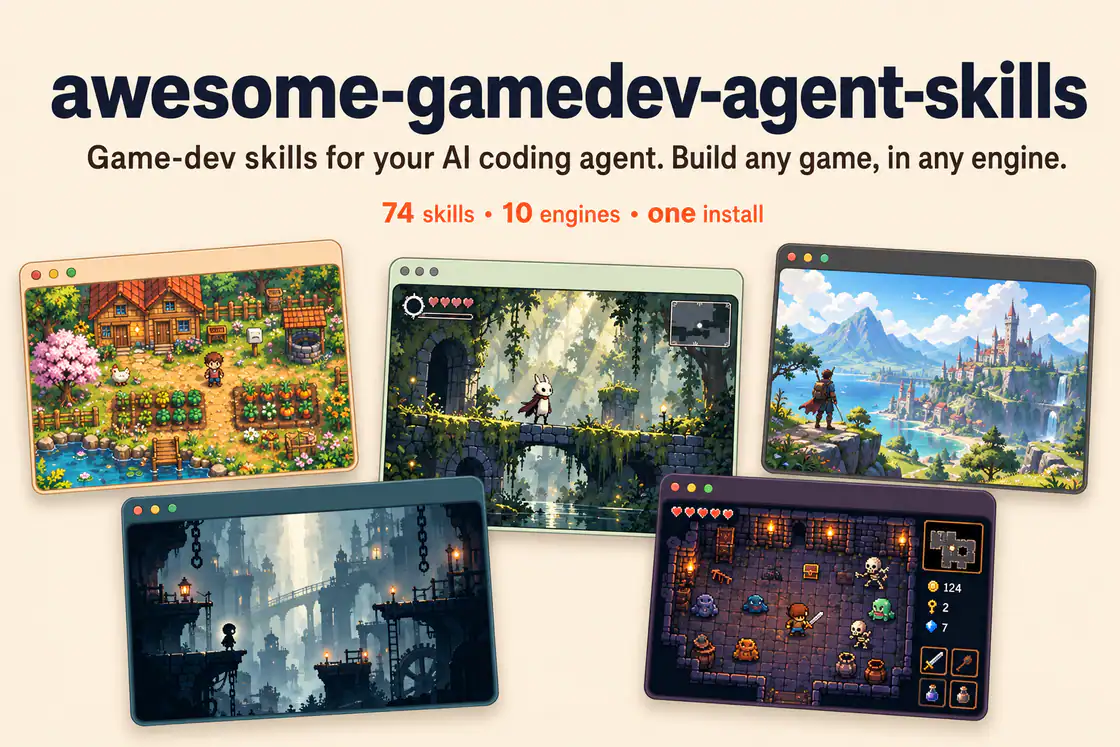
Author-provided banner showing five game scenes. Its 74-skill label reflects an earlier edition; the reviewed catalog contains 76 specialized skills plus a router.
Schermate del progettoInformazioni sullo Skill
Create Input Actions and Mapping Contexts, apply modifiers and triggers, and bind movement or look in C++ or Blueprints.
SKILL.md
Autore: Abhishek Barali · gamedev-skills/awesome-gamedev-agent-skills · Apache-2.0 · SKILL.md @ c6ca6c4
---
name: unreal-enhanced-input
description: >
  Unreal Engine 5 (UE 5.8) player input with Enhanced Input: Input Actions (IA_), Mapping Contexts
  (IMC_), ETriggerEvent bindings and remappable keys. Use when wiring move, look or fire, building
  a rebind menu, or input does nothing, stops after respawn or fires every frame. Not for
  engine-neutral input design (`input-systems`) or the Character class (`unreal-cpp-gameplay`).
---

# Unreal Enhanced Input

Wire UE5 player input with data assets: Input Actions say *what* the player wants, Mapping
Contexts say *which keys* produce it, modifiers shape the value and triggers decide *when* it
fires. Targets **UE 5.8**, where Enhanced Input is the default and legacy axis/action mappings
are deprecated.

## When to use

- Adding or fixing movement, look, jump or fire input; creating `IA_`/`IMC_` assets; applying
  modifiers and triggers; adding or swapping mapping contexts at runtime.
- Binding actions in C++ (`UEnhancedInputComponent::BindAction`) or Blueprint event nodes.
- Building a key-rebinding menu with Enhanced Input User Settings.

**When *not* to use:** engine-neutral input architecture, buffering and rebinding policy →
`input-systems`. The Pawn or Character class and module setup → `unreal-cpp-gameplay`.
Coyote time and jump buffering → `platformer`.

## Workflow

1. **Read the project.** Check `EngineAssociation`, find existing `IA_*`/`IMC_*` assets, and
   `grep -rn "AddMappingContext\|BindAction\|InputComponent" Source` to see where input is
   already set up. Extend that path rather than adding a second one. C++ binding needs
   `"EnhancedInput"` in the module's `*.Build.cs`.
2. **One Input Action per intent** with the right Value Type: `Digital (bool)` for buttons,
   `Axis1D (float)` for triggers or throttle, `Axis2D (Vector2D)` for move and look.
3. **Map keys in an IMC.** For WASD into one Axis2D action: W plain, S with Negate, D plain,
   A with Negate, and Swizzle Input Axis Values on W and S so they drive Y. Add Dead Zone on
   sticks. Triggers (Pressed, Released, Hold, Tap) go on the action or on one mapping.
4. **Add the context for the local player** through `UEnhancedInputLocalPlayerSubsystem::
   AddMappingContext(IMC, Priority)` at a point where the pawn is possessed on the owning
   client: `PawnClientRestart` on the pawn, or the PlayerController.
5. **Bind by trigger event.** `Triggered` for continuous values (move, look), `Started` and
   `Completed` for press and release (jump). Read the value with the `Get<T>()` that matches
   the Value Type.
6. **Remapping:** enable User Settings and give each remappable mapping a Player Mappable Key
   Settings name; details in the reference.
7. **Check it (see Verify).**

## Patterns

### Add the context and bind (C++ Character)

```cpp
void AMyCharacter::PawnClientRestart()
{
    Super::PawnClientRestart();               // runs on the owning client after possession
    if (APlayerController* PC = Cast<APlayerController>(GetController()))
        if (ULocalPlayer* LP = PC->GetLocalPlayer())
            if (auto* Subsystem = LP->GetSubsystem<UEnhancedInputLocalPlayerSubsystem>())
                Subsystem->AddMappingContext(DefaultMappingContext, /*Priority*/ 0);
}

void AMyCharacter::SetupPlayerInputComponent(UInputComponent* PlayerInputComponent)
{
    Super::SetupPlayerInputComponent(PlayerInputComponent);
    // Don't name the parameter InputComponent: that shadows AActor::InputComponent.
    if (auto* EIC = Cast<UEnhancedInputComponent>(PlayerInputComponent))
    {
        EIC->BindAction(MoveAction, ETriggerEvent::Triggered, this, &AMyCharacter::Move);
        EIC->BindAction(JumpAction, ETriggerEvent::Started,   this, &ACharacter::Jump);
        EIC->BindAction(JumpAction, ETriggerEvent::Completed, this, &ACharacter::StopJumping);
    }
}

void AMyCharacter::Move(const FInputActionValue& Value)
{
    const FVector2D Axis = Value.Get<FVector2D>();   // IA_Move is Axis2D
    AddMovementInput(GetActorForwardVector(), Axis.Y);
    AddMovementInput(GetActorRightVector(),   Axis.X);
}
```

### Blueprint equivalent

```text
Event Possessed (or the PlayerController's BeginPlay)
  -> Get Controller -> Cast To PlayerController -> Get Local Player
  -> Enhanced Input Local Player Subsystem -> Add Mapping Context (IMC_Default, 0)
EnhancedInputAction IA_Move (Triggered) -> Action Value X/Y -> Add Movement Input
```

## Verify

Say which of these you ran.

1. **Compile** the module (`Build.bat`/`Build.sh` as in `unreal-cpp-gameplay`) and fix errors;
   a missing `EnhancedInput` dependency shows up here as unresolved symbols.
2. **Validate assets:** `UnrealEditor-Cmd <Project>.uproject -run=DataValidation -unattended`.
3. **Regression test (optional but cheap once written):** a functional test in a test map can
   inject an action with the subsystem's input injection functions (for example
   `InjectInputForAction`) and assert the pawn moved. Run it with
   `UnrealEditor-Cmd <Project>.uproject -ExecCmds="Automation RunTest Project.Functional Tests;Quit" -unattended -nullrhi -ReportExportPath="<dir>"`
   (swap `-nullrhi` for `-RenderOffscreen` if the map needs a renderer).
4. **Ask the user** to start PIE, open the console, run `showdebug enhancedinput`, press the
   keys in question and report which contexts are active, their priorities and the action
   values. `Input.+key <Key>` injects a key press from the console when no device is handy.
   For multiplayer bugs, ask them to repeat it on a client window.

## Gotchas

- **No input at all:** the context was never added, it was added before the pawn had a local
  player, or a UI-only input mode is set (`SetInputMode` with UI only).
- **Works in single player, dead on a client or after respawn:** the context was added in
  `BeginPlay` before possession, so `GetController()` was null. Add it in `PawnClientRestart`
  or the PlayerController.
- **`Get<FVector2D>()` is always zero:** the action's Value Type isn't Axis2D.
- **Fires every frame:** `Triggered` repeats while held with the default Down trigger; use
  `Started`/`Completed`, or a Pressed or Tap trigger.
- **A key works in one mode and not another:** a higher-priority context maps the same key and
  consumes it. Adjust priorities or `RemoveMappingContext` when leaving the mode.
- **Combo trigger corrupts or misfires:** it is deprecated in 5.8 as unreliable. Build combos
  with your own sequence logic on `Started` events.
- **Boolean action bound to touch stays true after release (before 5.8):** touch keys carry
  the screen position as their value, and older versions evaluated that instead of the pressed
  state. 5.8 fixed it; on older engines bind touch to `Started`/`Completed`.
- **Rebinding edits the IMC asset:** that changes the default for everyone and isn't saved per
  player. Use User Settings (see the reference).

## References

- Read `references/cpp-setup.md` for a complete third-person Character (header, source,
  Build.cs, the IMC asset checklist) and the runtime rebinding steps with
  `UEnhancedInputUserSettings`.
- Epic docs: [Enhanced Input](https://dev.epicgames.com/documentation/unreal-engine/enhanced-input-in-unreal-engine),
  [Input Overview](https://dev.epicgames.com/documentation/unreal-engine/input-overview-in-unreal-engine).

## Related skills

- `input-systems`: engine-neutral input design and rebinding policy.
- `unreal-cpp-gameplay`: the Character, PlayerController and module setup.
- `game-ui-ux` with `unreal-blueprints`: menus that use these actions.

## Version notes

Last verified: 2026-11-11.

- Current release: UE 5.8 (5.8.4 hotfix, October 2026); UE 5.9 is in Preview.
- 5.8: Common UI and Enhanced Input are unified (no duplicate input data assets) with a new
  Input Debugger; the Combo trigger is deprecated; boolean actions on touch keys now follow the
  pressed state; triggers and modifiers keep their state when mappings are rebuilt.
- Sources: [UE 5.8 release notes](https://dev.epicgames.com/documentation/unreal-engine/unreal-engine-5-8-release-notes),
  [Enhanced Input docs, debug commands and injecting input](https://dev.epicgames.com/documentation/unreal-engine/enhanced-input-in-unreal-engine).
Perché lo abbiamo scelto
Provides a focused workflow, implementation patterns, and common failure checks for unreal enhanced input. Pair it with the detected engine and any related systems required by the task.
A cosa serve
- Use when your game task needs unreal enhanced input.
What this skill helps you build
Create Input Actions and Mapping Contexts, apply modifiers and triggers, and bind movement or look in C++ or Blueprints.
Patterns in the upstream playbook
The entrypoint covers: Add the mapping context (C++ Character); Bind actions and read values; Blueprint equivalent (node flow).
Use it in your project
Inspect the existing project
Describe the desired behavior and share the relevant project files, engine version, and current failure or target result.
Apply the focused playbook
Create Input Actions and Mapping Contexts, apply modifiers and triggers, and bind movement or look in C++ or Blueprints.
Verify in the matching runtime
Run the project or workflow with its actual dependencies and check the changed behavior before accepting the result.
Original unreal-enhanced-input instructionsEngine versions and upgrade policy
Shared collection installation
Install the complete upstream collection with its router and keep each skill’s bundled references, scripts, and assets. The dispatcher selects an engine and the smallest relevant task set; a member listing is a focused entry into that shared package.
| Comando | A cosa serve |
|---|---|
npx skills add gamedev-skills/awesome-gamedev-agent-skills | Keep the router and supporting skill folders available together. |
Prima di usarlo
- An Unreal Engine project and matching editor; C++ tasks need a configured native toolchain, and packaging needs the target-platform SDK.
Agenti supportati
Fonti e riferimenti
Le fonti originali sono collegate qui sotto. Gli spunti pratici sono suggerimenti editoriali di SkillHey.