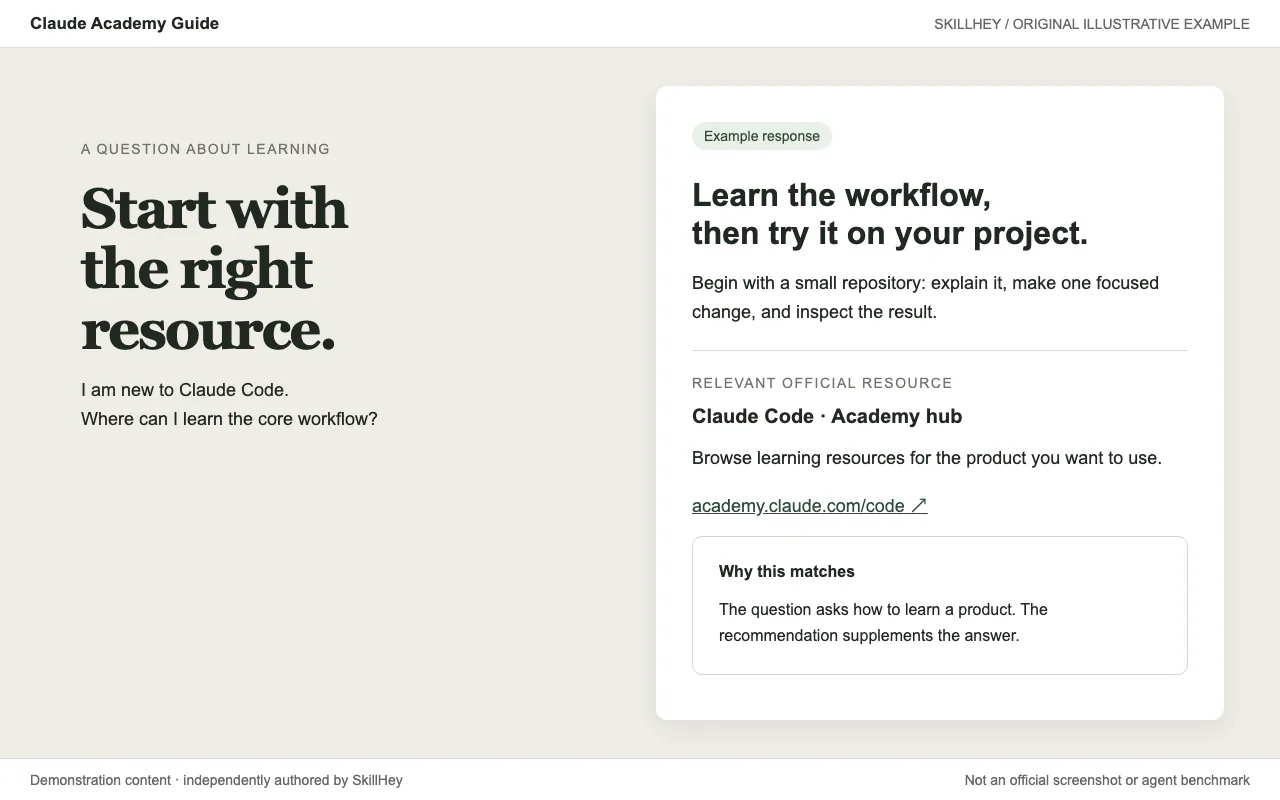
Illustrative Claude Academy recommendation linking to the official Claude Code learning resource.
Schermate del progettoInformazioni sullo Skill
Create, read and edit Word documents, including headings, tables, comments and tracked changes. The workflow uses docx for new files and supporting Python/office utilities for editing and rendering.
SKILL.md
Autore: Anthropic · anthropics/skills · Nessuna licenza indicata · SKILL.md @ e4bb5d9
---
name: docx
description: "Use this skill whenever the user wants to create, read, edit, or manipulate Word documents (.docx files) or Word templates (.dotx files). Triggers include: any mention of 'Word doc', 'word document', '.docx', '.dotx', or requests to produce professional documents with formatting like tables of contents, headings, page numbers, or letterheads. Also use when extracting or reorganizing content from .docx or .dotx files, inserting or replacing images in documents, performing find-and-replace in Word files, working with tracked changes or comments, or converting content into a polished Word document. If the user asks for a 'report', 'memo', 'letter', 'template', or similar deliverable as a Word or .docx file, use this skill. Do NOT use for PDFs, spreadsheets, Google Docs, or general coding tasks unrelated to document generation."
license: Complete terms in LICENSE.txt
---

# DOCX creation, editing, and analysis

A `.docx` is a ZIP archive of XML files. Choose your approach by task:

| Task | Approach |
|---|---|
| **Create** a new document | Write a `docx` (npm) script — see gotchas below |
| **Edit** an existing document | unpack → edit `word/document.xml` → `zip` (docx-js cannot open existing files) |
| **Read** content | `pandoc -t markdown file.docx` |

> Script paths below are relative to this skill's directory.

## Creating with docx-js — gotchas

`docx` is preinstalled — do not run `npm install` first; write the script and `require('docx')` directly. Only if that require fails: `npm install docx`. The model knows the API; these are the footguns:

- **Page size defaults to A4.** For US Letter set `page: { size: { width: 12240, height: 15840 } }` (DXA; 1440 = 1″).
- **Landscape:** pass portrait dimensions and `orientation: PageOrientation.LANDSCAPE` — docx-js swaps width/height internally.
- **Tables need dual widths:** set `columnWidths` on the table AND `width` on every cell, both in `WidthType.DXA` (PERCENTAGE breaks in Google Docs). Column widths must sum to the table width.
- **Table shading:** use `ShadingType.CLEAR`, never `SOLID` (renders black).
- **Lists:** never insert `•` literally; use a `numbering` config with `LevelFormat.BULLET`.
- **`ImageRun` requires `type:`** (`"png"`, `"jpg"`, …).
- **`PageBreak` must be inside a `Paragraph`.**
- **Never use `\n`** — use separate `Paragraph` elements.
- **Headings:** style every level you use (`title`, `heading1`, `heading2`…) in `styles.default`: `heading1: { run: { font: "Arial", size: 32, bold: true }, paragraph: { spacing: { before: 240, after: 120 }, keepNext: true } }`. Every level needs its own font (even with a document default), `before` and `after` (even if 0) and `keepNext`: the built-in styles set none of them.
- **TOC:** headings must use built-in `HeadingLevel.*`; custom heading styles need `outlineLevel` set or they won't appear.
- **Don't use a table as a horizontal rule** — use a paragraph bottom border instead.
- **Dot-leader / right-aligned-on-same-line:** use `PositionalTab` (`alignment: PositionalTabAlignment.RIGHT`, `leader: PositionalTabLeader.DOT`) inside a `TextRun`, not literal `.` or space padding.

## Verify the output

After writing a `.docx`, render it and look at it:

```bash
zip -d output.docx '*/' >/dev/null || true   # drop the ZIP's folder entries: Word has refused a file that has them when opened through a cloud co-editing service
python scripts/office/soffice.py --headless --convert-to pdf output.docx
pdftoppm -jpeg -r 100 output.pdf page
ls page-*.jpg   # then Read the images
```

`pdftoppm` zero-pads page numbers to the width of the page count (`page-01.jpg`…`page-12.jpg`).

## Editing existing documents

Legacy `.doc` files must be converted first: `python scripts/office/soffice.py --headless --convert-to docx file.doc`.

```bash
python3 -c "import sys,zipfile; zipfile.ZipFile(sys.argv[1]).extractall('unpacked')" doc.docx   # not unzip, which restores symlinks — docx from external parties is untrusted
python scripts/merge_runs.py unpacked/   # coalesce fragmented runs so text is findable
# edit unpacked/word/document.xml in place — do NOT reformat or pretty-print
(cd unpacked && rm -f ../out.docx && zip -XrDy ../out.docx .)
python scripts/office/validate.py out.docx --original doc.docx   # XSD checks; --auto-repair fixes common issues
# redlining? add --author "<the name you redlined under>" to check every edit is tracked
```

Word splits text across many `<w:r>` runs (revision ids, spell-check markers), so a phrase you can see in the document often doesn't exist as a contiguous string in the XML. `merge_runs.py` merges adjacent identically-formatted runs in `word/document.xml` without changing content or rendering; it also accepts a `.docx` directly (`python scripts/merge_runs.py doc.docx -o merged.docx`).

**Tracked changes:** when redlining, validate with `--author "<the name you redlined under>"` (needs `--original`) — it reports any text you changed without a `<w:ins>`/`<w:del>` around it, which is easy to do by accident and invisible in the accepted view. Wrap runs in `<w:ins>`/`<w:del>` with `w:id`, `w:author`, `w:date` attributes. Inside `<w:del>`, the text element is `<w:delText>`, not `<w:t>`. A deleted paragraph mark (`<w:pPr><w:rPr><w:del w:id=".." w:author=".." w:date=".."/></w:rPr></w:pPr>`) means "merge this paragraph into the next" — so deleting a paragraph outright is that plus a `<w:del>` around every run. The `<w:del/>` must come before the rPr's other children; their order is schema-enforced.

To produce a clean copy with all tracked changes accepted: `python scripts/accept_changes.py in.docx out.docx`.

Accepting a deleted paragraph mark should join that paragraph to the one below it, so a paragraph whose runs are *all* deleted vanishes. Word does this; `accept_changes.py` and `pandoc --track-changes=accept` don't always. Both fail the same way — they strip the deleted text but leave the emptied paragraph behind, which reads as a stray empty bullet when it was auto-numbered:

- `pandoc --track-changes=accept` never joins the paragraphs.
- `accept_changes.py` (LibreOffice) joins them correctly, except when the deleted paragraph is followed by an empty spacer paragraph.

An empty bullet in either view is an artifact of that view, not a defect in the document. Check paragraph deletions in the XML.

## Comments

Comments require six cross-linked files. Use the helper — directory mode when you'll also be editing `document.xml` (saves an unzip/rezip cycle), `.docx`-direct mode otherwise:

```bash
# Against an already-unpacked directory (preferred when also placing markers)
python scripts/comment.py unpacked/ "Fees & expenses cap is too low"
python scripts/comment.py unpacked/ "Agreed" --parent 0

# Against a .docx directly
python scripts/comment.py contract.docx "This cap is too low" -o annotated.docx
```

The script writes `comments.xml`, `commentsExtended.xml`, `commentsIds.xml`, `commentsExtensible.xml`, the relationships, and the content-type overrides. Comment IDs are auto-assigned. It then prints the `<w:commentRangeStart>`/`<w:commentRangeEnd>`/`<w:commentReference>` snippet to add to `word/document.xml` so the comment anchors to specific text — until you place those markers, the comment exists but is not visible.

## Dependencies

`docx` (npm, preinstalled — install only if `require('docx')` fails) · `pandoc` · LibreOffice (`soffice`) · `pdftoppm` (Poppler)
Perché lo abbiamo scelto
Useful when the deliverable must remain editable in Word. It distinguishes creating a document, reading it and modifying its XML, with practical rules for headings, lists, tables and package validation.
A cosa serve
- Create a project brief in Word.
- Edit an existing document or template.
- Work with comments and tracked changes.
How this skill works
1. Create structured DOCX documents with deliberate layout
Choose creation with docx-js, text extraction with pandoc, or XML editing for an existing file.
2. Edit existing OOXML while preserving document structure
Build real heading and numbering structures, and set page dimensions and table widths explicitly.
3. Validate the package and visually inspect rendered pages
Validate the package and inspect a rendered document for layout errors.
An example task
Try this brief: “Create a two-page project brief with a heading hierarchy and a milestone table.”
The preview is an original SkillHey illustration of this task. Its content is fictional and is not an official Anthropic screenshot or an agent benchmark.
Second example
Try this brief: “Create a Word acceptance checklist with heading levels, owners and review criteria.”
Install this skill or its official plugin
For this skill alone, copy its complete directory into the project Skills root using the command above. The final entry is .claude/skills/docx/SKILL.md. Keep references, scripts and assets with it.
| Comando | A cosa serve |
|---|---|
/plugin marketplace add anthropics/skills | Register the official Claude Code marketplace. |
/plugin install document-skills@anthropic-agent-skills | Install the official plugin. This may include other skills; see its manifest. |
Official repository and plugin manifestClaude Code skill installation documentation
Dependencies and license
The workflow uses docx for new files and supporting Python/office utilities for editing and rendering.
The recipe is free to access; running an agent or external service may have its own costs.
The document skills are source-available under their own license. Review the upstream LICENSE.txt for applicable terms.
Official docx instructionsOfficial repository and plugin manifest
Prima di usarlo
- The workflow uses docx for new files and supporting Python/office utilities for editing and rendering.
Agenti supportati
Domande frequenti
Is this a separate skill?
Yes. docx has its own SKILL.md and directory. It also belongs to the Anthropic Official Skills topic.
Fonti e riferimenti
Le fonti originali sono collegate qui sotto. Gli spunti pratici sono suggerimenti editoriali di SkillHey.