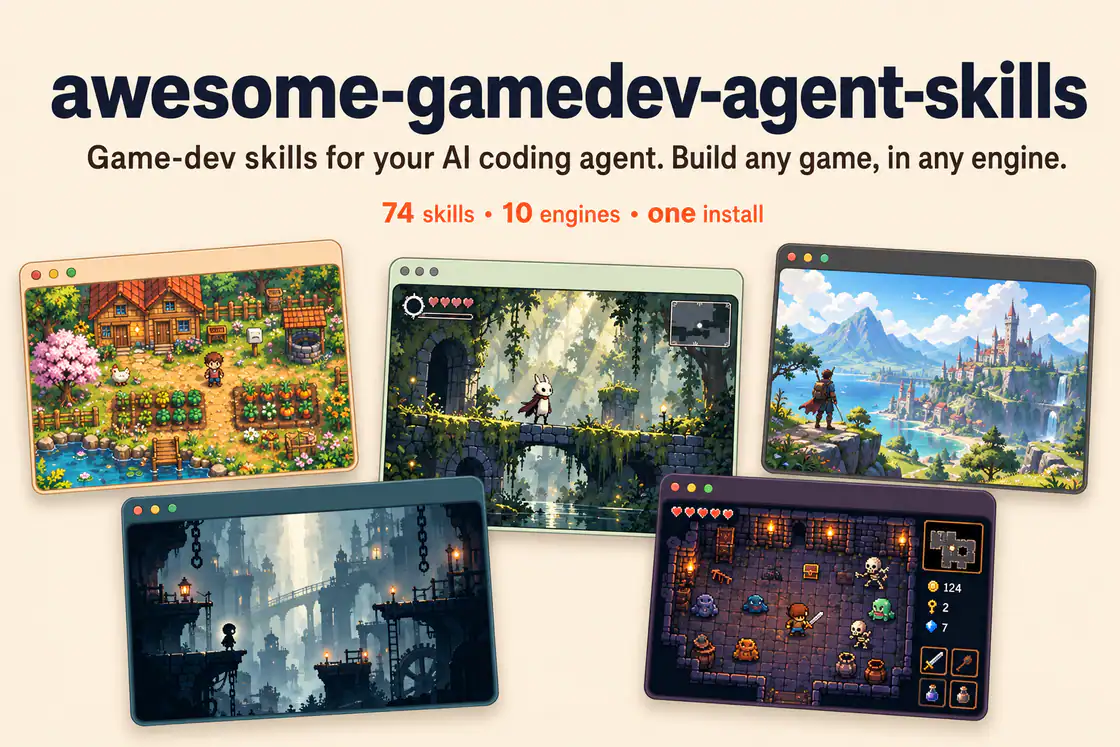
Author-provided banner showing five game scenes. Its 74-skill label reflects an earlier edition; the reviewed catalog contains 76 specialized skills plus a router.
Schermate del progettoInformazioni sullo Skill
Build HUDs and menus with responsive anchors, safe areas, focus navigation, screen state, and event-driven updates.
SKILL.md
Autore: Abhishek Barali · gamedev-skills/awesome-gamedev-agent-skills · Apache-2.0 · SKILL.md @ c6ca6c4
---
name: game-ui-ux
description: >
  Engine-neutral design rules for game HUDs and menus: anchors and containers, scaling, safe
  areas, gamepad focus, HUDs driven by events instead of polling, and accessibility minimums. Use
  for menus, health bars or inventory screens that break on ultrawide or phones. Pair with
  `godot-ui-control` or `roblox-ui`. Not for button juice (`game-feel`) or rebinding
  (`input-systems`).
---

# Game UI/UX

Make every HUD and menu work on a phone, an ultrawide monitor and a TV, with a mouse or only a
gamepad. This skill decides layout, scaling, focus, screen flow and how UI listens to game
state; the engine UI skill supplies nodes, components and styling.

## When to use

- Building a HUD, a menu, an inventory or shop screen, or any overlay.
- Fixing UI that breaks at other resolutions, ignores safe areas, strands a gamepad user, or
  polls game state every frame.
- Structuring screen flow (title, game, pause, settings, confirm) as a stack.

**Not this skill:** widget APIs and themes (`godot-ui-control`, `roblox-ui`, Unity UGUI or UI
Toolkit through the Unity skills), visual juice (`game-feel`), conversation flow and choice
logic (`dialogue-systems`), rebinding screens' input logic (`input-systems`), UI art and icons
(`create-game-assets`).

## Workflow

1. **Inspect the project's UI first**: stretch or CanvasScaler settings, existing theme, fonts,
   the screen-switching code, and which input devices the game targets.
2. **Lay out with anchors and containers.** Anchor to edges, corners or centre; let rows,
   columns and grids place children. A hard-coded `(x, y)` is correct at one resolution only.
3. **Set one scaling policy for the whole UI**: a reference resolution (usually 1920x1080) that
   scales to fit, plus an aspect rule: `expand` and anchor HUD corners outward (default), or
   letterbox when the design truly needs a fixed frame.
4. **Inset critical UI to the safe area** (health, timers, prompts); decorative art may bleed.
   Reapply on resize and orientation change.
5. **Make every screen gamepad-navigable**: one control focused on open, neighbours fixed where
   the engine guesses wrong, a focus style distinct from hover, focus trapped inside modals.
6. **Model screens as a stack.** Push for overlays, pop for back; only the top screen takes input,
   and the screen below gets its focus back.
7. **Drive the HUD from events.** Subscribe to `health_changed`, `score_changed`; set the initial
   value once on connect, because signals do not replay.
8. **Verify with a runnable check, then on screens.**
   - Headless focus check: a script that opens each screen in turn and fails if
     `get_viewport().gui_get_focus_owner()` (Godot) or
     `EventSystem.current.currentSelectedGameObject` (Unity) is null.
   - Size sweep: launch at 1280x720, 2560x1080 and 1080x2340 (Godot: `--resolution WxH`; needs a
     display or `xvfb-run`, because the headless renderer draws nothing) and save a viewport
     screenshot at each. Inspect them for clipped or overlapping elements.
   - Ask the user to unplug the mouse, play through every menu with a gamepad and report any
     screen where nothing is selected or focus escapes.

## Patterns

### 1. Anchors and containers

```gdscript
# Godot 4.7. Anchor the score to a corner; an HBoxContainer spaces the hearts.
func _ready() -> void:
    $Score.set_anchors_preset(Control.PRESET_TOP_LEFT)
    for i in lives:
        $Hearts.add_child(make_heart())
```

Unity UGUI: anchor the `RectTransform` to the corner and use a `HorizontalLayoutGroup`; set the
pivot to the same corner, or the element grows in every direction when its size changes.

### 2. Scaling settings

```text
Godot 4.7  project.godot [display]:
  window/stretch/mode="canvas_items"   window/stretch/aspect="expand"
  window/size/viewport_width=1920      window/size/viewport_height=1080
Unity 6.3  CanvasScaler: Scale With Screen Size, Reference Resolution 1920x1080,
  Match Width Or Height = 0.5 (1.0 if the layout must never clip vertically)
Unity 6.3  UI Toolkit: the same three settings live on the PanelSettings asset
```

### 3. Safe-area inset

```gdscript
# Godot 4.7. Only Android and iOS report a real safe area; elsewhere the margins come out ~0.
func _apply_safe_area() -> void:
    var safe := Rect2(DisplayServer.get_display_safe_area())           # screen pixels
    var win := Rect2(Rect2i(DisplayServer.window_get_position(), DisplayServer.window_get_size()))
    var inner := safe.intersection(win)
    var to_ui := get_viewport_rect().size / win.size    # window pixels -> UI units under stretch
    $Margin.add_theme_constant_override("margin_left", int((inner.position.x - win.position.x) * to_ui.x))
    $Margin.add_theme_constant_override("margin_top", int((inner.position.y - win.position.y) * to_ui.y))
    $Margin.add_theme_constant_override("margin_right", int((win.end.x - inner.end.x) * to_ui.x))
    $Margin.add_theme_constant_override("margin_bottom", int((win.end.y - inner.end.y) * to_ui.y))
```

Unity: read `Screen.safeArea` and set a panel's `anchorMin`/`anchorMax` to its corners divided
by `Screen.width`/`Screen.height`; recompute when the rect changes, not every frame.

### 4. Focus on open

```gdscript
# Godot 4.7. Focus something on open; fix neighbours only where the automatic guess is wrong.
func _on_screen_shown() -> void:
    $PlayButton.grab_focus()
    $PlayButton.focus_neighbor_bottom = $SettingsButton.get_path()
    $SettingsButton.focus_neighbor_top = $PlayButton.get_path()
```

Unity UGUI: `EventSystem.current.SetSelectedGameObject(playButton)` in `OnEnable`, with
`Navigation` set to Automatic or Explicit. UI Toolkit: call `Focus()` on the first element.

### 5. Event-driven HUD

```gdscript
# RIGHT: HUD reacts to a signal; it updates only when health actually changes.
func _ready() -> void:
    player.health_changed.connect(_on_health_changed)     # emitted by gameplay
    _on_health_changed(player.hp, player.max_hp)           # signals do not replay initial state
func _on_health_changed(current: int, max_health: int) -> void:
    # ratio maps 0..1 to the bar's configured range (default value range is 0..100).
    $HealthBar.ratio = clampf(float(current) / max_health, 0.0, 1.0) if max_health > 0 else 0.0
# WRONG: func _process(dt): $HealthBar.value = player.hp / player.max_hp  # polls every frame,
# couples UI to the player's internals, and runs work even when nothing changed.
```

## Gotchas

- **Nothing focused on open** leaves a gamepad player stuck on the first menu. Every screen
  focuses one control when shown, and again when a screen above it closes.
- **Focus escapes a modal.** Showing a dialog and focusing its button does not stop neighbour
  search from reaching buttons behind it. Disable focus and mouse on the screen below (Godot
  4.5+: `focus_behavior_recursive` and `mouse_behavior_recursive`).
- **`set_process_input(false)` does not disable a Godot menu**: buttons receive GUI input, not
  `_input`. Use the recursive focus and mouse behaviours above.
- **Unity UGUI ignores the gamepad, or throws on start,** after switching Active Input Handling to
  the Input System: the scene still has a `StandaloneInputModule`. Replace it with
  `InputSystemUIInputModule`. UI Toolkit reads the project-wide UI actions and needs no module.
- **Pixel-art UI at a fractional scale** shimmers and blurs. Godot: set
  `window/stretch/scale_mode="integer"`; Unity: pick a reference resolution that divides the
  target displays evenly and use a pixel-perfect canvas.
- **Text too small on a TV.** Default text should be at least 26 px at 1080p on console and TV
  and 18 px at 1080p on PC, scalable to 200 % without losing content.
- **Colour as the only signal** (red equals danger) fails for colour-blind players. Add an icon,
  shape or label. Text that carries gameplay information needs at least 4.5:1 contrast.
- **Hard-coded English sized to fit** overflows in German (often about 30 % longer). Use string
  tables (`tr()`, Unity Localization) and containers that size to content.
- **Menu flow as booleans** (`is_paused`, `in_settings`, `confirm_open`) breaks on the third
  overlay. Use the screen stack.
- **Pause freezes the pause menu.** Godot: `get_tree().paused = true` and the overlay's
  `process_mode = PROCESS_MODE_ALWAYS`; Unity: menu animation must use unscaled time when
  pausing by `Time.timeScale = 0`.
- **Mouse movement clears gamepad focus.** Let the mouse move the selection, but never leave
  the screen with nothing selected after the mouse stops.

## References

- `references/layout-and-flow.md`: read for per-engine stretch and scale settings, safe-area
  maths, the full focus-trap and screen-stack code, diegetic vs world-space UI, accessibility
  details and localization-ready layout.

## Related skills

- `godot-ui-control`, `roblox-ui`: engine widgets, themes and styling; load alongside this one.
- `game-feel`: button pops, transitions and HUD juice on top of this layout.
- `dialogue-systems`: conversation and choice logic inside this UI shell.
- `input-systems`: device switching and rebinding screens.

## Version notes

Last verified: 2026-11-11.

- Text size: Xbox Accessibility Guideline 101 sets 26 px at 1080p (52 px at 4K) for console,
  18 px at 1080p (36 px at 4K) for PC, and scaling to 200 %
  (https://learn.microsoft.com/en-us/xbox/accessibility/xbox-accessibility-guidelines/101).
- Contrast: Xbox Accessibility Guideline 102, 4.5:1 for text, 3:1 for large text and key visuals
  (https://learn.microsoft.com/en-us/xbox/accessibility/xbox-accessibility-guidelines/102).
- Godot 4.7: `Control.focus_behavior_recursive`/`mouse_behavior_recursive` (added in 4.5),
  `DisplayServer.get_display_safe_area()`; stretch settings per
  https://docs.godotengine.org/en/4.7/tutorials/rendering/multiple_resolutions.html.
- Unity 6.3 LTS with the Input System package (1.20.1 is the latest release, October 2026):
  `InputSystemUIInputModule` replaces `StandaloneInputModule`
  (https://docs.unity3d.com/Packages/[email protected]/manual/UISupport.html;
  https://packages.unity.com/com.unity.inputsystem).
Perché lo abbiamo scelto
Provides a focused workflow, implementation patterns, and common failure checks for game ui & ux. Pair it with the detected engine and any related systems required by the task.
A cosa serve
- Use when your game task needs game ui & ux.
What this skill helps you build
Build HUDs and menus with responsive anchors, safe areas, focus navigation, screen state, and event-driven updates.
Patterns in the upstream playbook
The entrypoint covers: Anchors + containers, not absolute coordinates; Scale to a reference resolution (one UI, many screens); Safe-area inset for notches / overscan; Gamepad/keyboard focus (UI is unusable on a controller without it); Event-driven HUD (decouple UI from game logic).
Use it in your project
Inspect the existing project
Describe the desired behavior and share the relevant project files, engine version, and current failure or target result.
Apply the focused playbook
Build HUDs and menus with responsive anchors, safe areas, focus navigation, screen state, and event-driven updates.
Verify in the matching runtime
Run the project or workflow with its actual dependencies and check the changed behavior before accepting the result.
Original game-ui-ux instructionsEngine versions and upgrade policy
Shared collection installation
Install the complete upstream collection with its router and keep each skill’s bundled references, scripts, and assets. The dispatcher selects an engine and the smallest relevant task set; a member listing is a focused entry into that shared package.
| Comando | A cosa serve |
|---|---|
npx skills add gamedev-skills/awesome-gamedev-agent-skills | Keep the router and supporting skill folders available together. |
Prima di usarlo
- An existing or planned game and an Agent Skills-compatible coding agent. Pair engine-neutral concepts with the engine-specific entrypoints when writing code.
Agenti supportati
Fonti e riferimenti
Le fonti originali sono collegate qui sotto. Gli spunti pratici sono suggerimenti editoriali di SkillHey.