Best PDF Skills for AI Agents: Extraction, Editing and Reading
Last updated: 2026-10-26
A PDF request needs a more precise verb than “process.” Extracting a schedule, rotating scanned pages, completing a form and reading a research paper all start with the same file extension. They produce different artifacts and require different checks. A useful PDF skill helps an agent choose that path and keep the result connected to the source.
This guide compares five published task entrypoints. The cards link directly to each child Skill, where you can inspect its instructions and installation context. Anthropic, DeepTutor and Learn Claude Code are the source projects behind several entries; a collection name alone does not explain the particular document job. Recommendations here follow their documented workflows, rather than a shared accuracy or speed benchmark.
PDF skills at a glance
PDF Processing
Create and inspect PDFs, extract text and tables, merge pages and process forms or scanned documents.
183.4KStarsRead, extract (text/tables), create, merge/split/rotate, watermark, encrypt, fill, and render-to-image .pdf files.
41.5KStarsLearn Claude Code Skills: PDF Processing
Use common PDF utilities and Python libraries to read, create, split and merge documents.
78.6KStars
Waza Read
Fetch web pages and PDFs, then return clean Markdown, summaries, or cited extracts.
7.3KStars
Nature Reader
Create source-linked Chinese-English Markdown paper readers with aligned text, figures, tables and equations.
48.5KStars| What you need | Task entrypoint | Expected handoff |
|---|---|---|
| Extract, create or modify PDFs | PDF Processing | A revised PDF or extracted content, checked against source pages |
| Work inside a DeepTutor environment | DeepTutor PDF | The selected PDF operation and its output files |
| Follow a compact utility-based workflow | Learn Claude Code PDF Processing | A focused extraction, conversion or page operation |
| Read a webpage or PDF as usable text | Waza Read | Clean Markdown, a summary or cited extracts |
| Build a detailed bilingual paper reader | Nature Reader | Source-linked Markdown with aligned paper content |
Decide what the receiving person needs
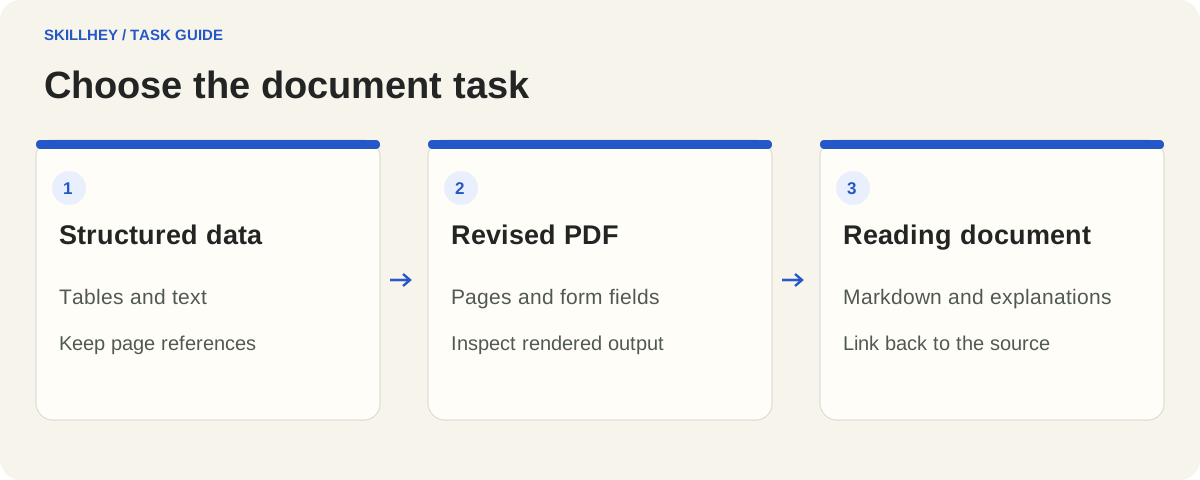
Start by naming the output. A colleague who needs a spreadsheet should receive structured rows and column definitions. A reader who needs a concise briefing should receive a source-linked explanation. Someone updating a form needs the completed document, with the relevant fields and page appearance preserved. These are separate acceptance criteria even when one agent can perform all three tasks.
For extraction, specify the page range, fields, ordering and destination format. For editing, identify the permitted changes and what must remain intact. For reading, name the audience and the questions the document must answer. A short handoff description prevents an agent from delivering polished prose when the actual requirement was a machine-readable table.
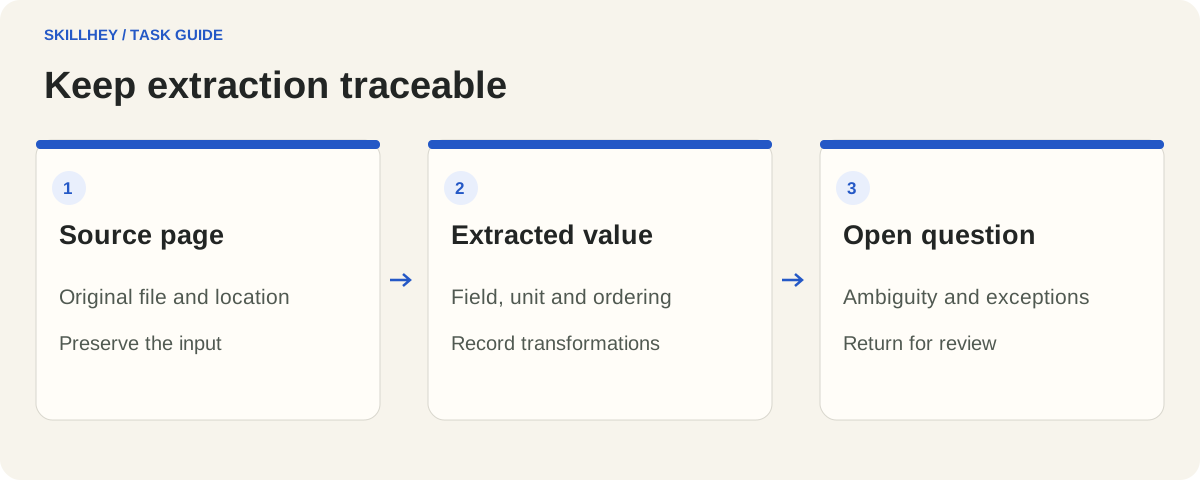
A practical initial brief might be: “Extract the event name, date, room and registration link from pages 3–8 of this workshop program. Return CSV and a separate list of ambiguous rows. Keep a source page number for every record.” The page references make corrections possible. The ambiguity list makes missing information visible instead of silently filling it in.
Inspect the source before extracting it
Check a representative page before choosing a method. A digitally generated PDF may contain selectable text, but that text can still arrive in an unexpected reading order. A scanned page may require OCR. A mixed document can contain both. Treat the document as a set of pages with different properties rather than assuming one successful extraction proves the entire file is straightforward.
Tables deserve a separate look. A page can appear to contain a clean grid while internally storing disconnected text fragments. Wrapped headings, merged cells, footnotes and repeated headers can change the meaning of an extracted row. Ask for a small sample and compare it with the corresponding pages before processing a large batch.
Preserve the input as a reference. Give each output a clear filename and keep page numbering conventions explicit: the printed page label can differ from the page's position in the PDF. If a report cites “page 12,” the receiving person should know which numbering scheme that means. This small decision saves repeated work during review.
PDF Processing: a general document toolbox
Anthropic PDF Processing is a broad starting point for extraction, page manipulation, PDF creation and forms. Its official instructions route tasks through Python libraries and command-line tools. The appropriate tool depends on the requested operation; installing the Skill does not install every library or OCR dependency it might use.
Choose this entry when the job is primarily a PDF operation and you want the agent to follow the accompanying task guidance. Provide a concrete example of the desired result. For a generated report, request readable tables, correct page breaks and a rendered review. For a form, identify the fields and expected values before the agent edits the file.
The official PDF instructions link to supporting material. Keep those files with the entrypoint. The document Skill also carries its own license terms; the surrounding repository's availability should not be treated as a blanket permission to redistribute every component.
DeepTutor PDF: document operations in its own workspace
DeepTutor PDF covers reading, text and table extraction, creation, page operations, forms and rendering. It is a built-in task in the DeepTutor project. That environment is part of the selection decision: someone already working with DeepTutor can use its document workflow without treating an unrelated toolkit as an interchangeable replacement.
Before choosing it, inspect the built-in PDF entrypoint and the project's setup requirements. Keep workspace assumptions and runtime dependencies visible in the handoff. If your agent runs elsewhere, confirm how the complete task folder and its dependencies will be supplied.
Useful requests are narrow: extract one table, combine a named set of files, or fill specified fields. A long list of supported operations is helpful for discovery, but it is the current operation that determines the input contract and the result you should inspect.
Learn Claude Code PDF: a compact utility workflow
Learn Claude Code PDF Processing provides a shorter guide to common PDF utilities and Python-based operations. It fits a focused task where understanding the chosen command and its output matters more than adopting a larger document environment.
The course's PDF instructions describe extraction, creation and page manipulation. Treat this as a task folder from a learning repository. Cloning the course does not automatically register its Skills in every installed agent, and the course's executable agent examples have their own setup.
Use a brief that names a bounded input and output: one document, a selected range, a target filename and a condition for success. Ask the agent to state which utility it used. That explanation makes later failures easier to investigate when a new PDF has a different structure.
Waza Read: readable content from a PDF or URL
Waza Read focuses on retrieving useful content from webpages and PDFs. It is a reading-oriented entrypoint: clean Markdown, summaries and cited extracts are more relevant outputs than a redesigned PDF file.
Choose it when your immediate problem is understanding or reusing source text. State whether you need a faithful extraction, a summary, an answer to a question or material saved locally. Those requests involve different levels of interpretation. Keep a link or page reference beside statements that you expect another person to verify.
The Waza reading instructions include routing and retrieval boundaries. Access depends on the source and configured tools. A link being readable in your browser does not establish that an agent has the same session, subscription or retrieval capability.
Nature Reader: a structured companion to a paper
Nature Reader is aimed at building source-linked Chinese–English Markdown readers with aligned text, figures, tables and equations. That is a more substantial editorial artifact than a general PDF summary. It suits a reader who wants to work through a paper and return to the original material.
The upstream reader workflow distinguishes a complete reader from a question about a source or translation of an excerpt. Preserve the workflow's supporting files and the shared package where referenced. The directory listing identifies this workflow as Beta, so inspect its current requirements before planning a large conversion job.
Ask for a clear connection between explanation and source. An equation should retain its original notation and context. A figure discussion should point back to the relevant figure. A simplified explanation should be recognizable as interpretation rather than a replacement for what the authors wrote.
A repeatable workflow for a batch of PDFs
Use a small pilot before extending the same operation across a directory. Pick documents that represent the difficult cases: a scan, a multi-column page, a large table, or a file with unusual fonts. Agree the output schema and naming rules using those examples. The purpose is to discover mismatches while they are still cheap to correct.
For each file, retain the input name, page range, selected operation, output path and unresolved issues. A batch manifest makes it possible to resume after an interruption. It also prevents “finished” from meaning that some output file exists while several source pages were skipped.
Separate extracted observations from editorial interpretation. If a date is unreadable, keep it unresolved until a person or another source can settle it. If you summarize a paragraph, retain the source reference. If you normalize units or dates, describe that transformation once in the output notes.
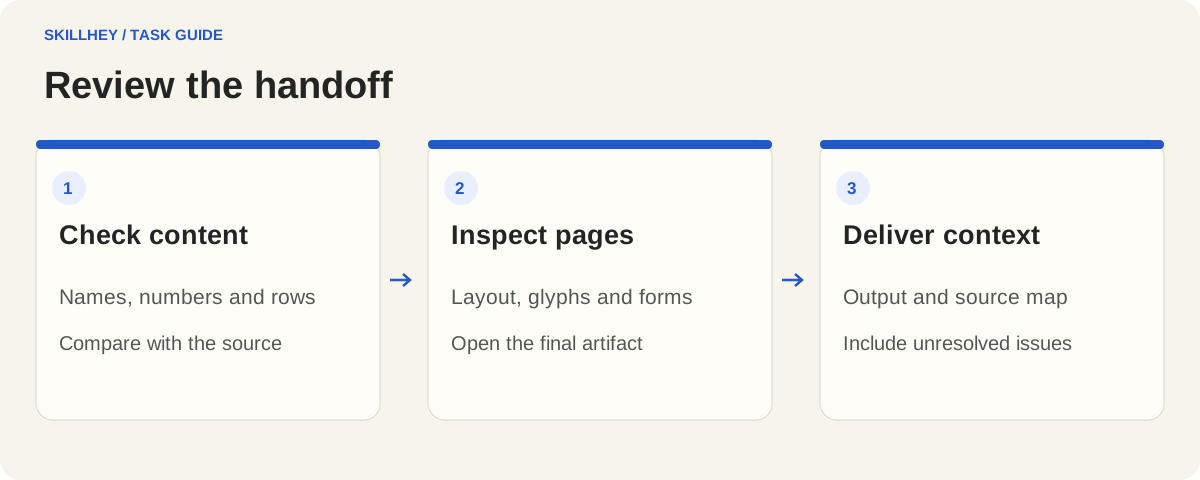
Finally, hand over a small review package: the requested artifact, its source mapping, and the short list of unresolved problems. People reviewing the work should be able to inspect a disputed row or paragraph directly. They should not need access to the agent's entire conversation to understand why it appears in the result.
What to inspect before handing the result over
An extraction review and a visual document review answer different questions. Check extracted content for missing rows, character errors, lost footnotes and incorrect associations between columns. Compare a few ordinary examples and every flagged exception with the source. Important numbers, dates and names deserve direct checking.
For a revised or generated PDF, open rendered pages. Look for clipped text, unreadable type, empty pages, broken glyphs and misplaced fields. If another person must continue editing, confirm that you are delivering the right source artifact as well as the PDF. A finished export and an editable working document serve different needs.
Installation and operating costs
Open the selected child Skill's detail page and follow its current upstream installation instructions. Keep complete folders and referenced resources together. A self-contained text guide and a workflow that calls scripts or shared packages have different installation requirements. Confirm the required runtime before choosing a deadline.
Separate the price of installing instructions from the cost of executing the task. Your agent subscription, model calls, OCR service, hosting and local processing may have their own costs. For sensitive documents, understand whether the chosen path reads files locally or sends them to a configured service. The task's setup should make that decision clear.
Frequently asked questions
Which PDF Skill should I try first?
For a general file operation, inspect PDF Processing and choose the tool for that operation. For clean reading text, start with Waza Read. For a detailed bilingual paper companion, inspect Nature Reader. Your existing environment may make DeepTutor PDF or the compact Learn Claude Code workflow more convenient.
Can these Skills read scanned PDFs?
Some workflows can route scanned pages through OCR when the required tools are available. OCR is an additional processing step, and its output needs review. Keep the source pages, flag uncertain characters and avoid treating a readable-looking transcript as proof that every number was recognized correctly.
Does extracted text preserve the page layout?
Usually the output format determines what structure is retained. Plain text, Markdown, a spreadsheet and a rendered PDF preserve different information. If tables, columns, equations or figure placement matter, state that requirement and compare a representative output with the original before scaling up.
Are the three general PDF entries independent products?
They are task entrypoints from different source projects. Their workflows and underlying utilities can overlap, and some projects reuse established document-processing approaches. Compare their actual instructions and runtime context. The presence of several catalog entries does not prove different extraction engines or independent accuracy results.
Can a PDF summary replace reading the original paper?
A summary can help you navigate a paper, but conclusions still need support from the original methods, results and limitations. Ask for page or section references and check the claims that matter to your decision. Our research Skills guide covers the next stage of that process.
What should I send with a PDF task request?
Provide the file or accessible source, the pages involved, the output format, the intended reader, and examples of important fields. Include naming rules and a place for unresolved issues. A clear acceptance condition lets the agent choose an appropriate workflow and makes the handoff easier to assess.
Choose a task from the cards above, then open its instructions and provide a bounded document brief. For work that continues into drafting, see the writing Skills guide. The useful starting point is the child workflow that matches the result you need.